Thumbnails are the single biggest factor in whether someone clicks on your YouTube video. A well-designed thumbnail can double your click-through rate overnight, and Canva makes it possible for any creator to design professional-quality thumbnails and end screens — even with zero graphic design experience. This free guide walks you through the complete process, from blank canvas to published artwork, using Canva in 2026.
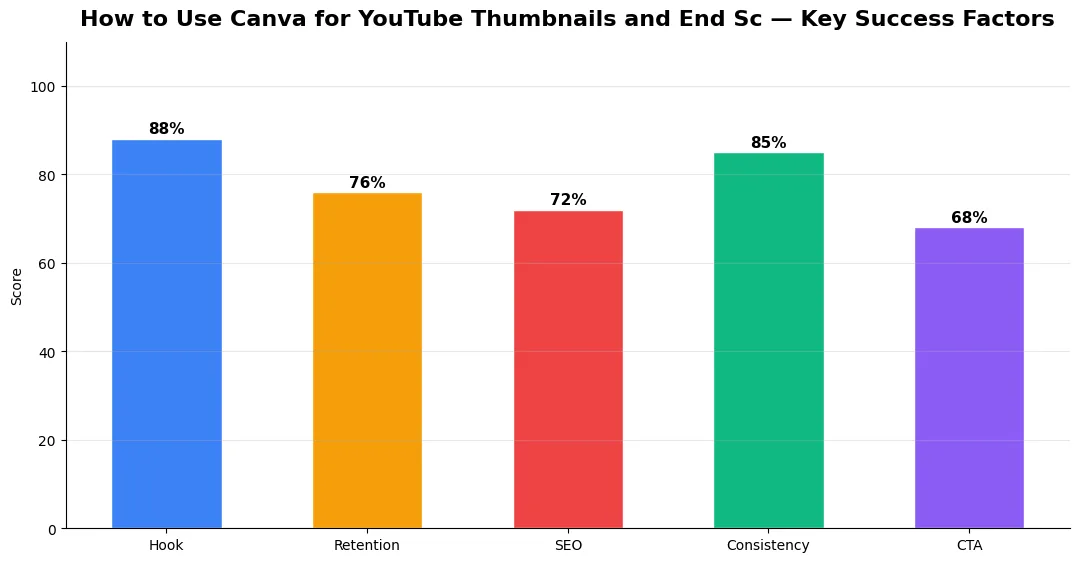
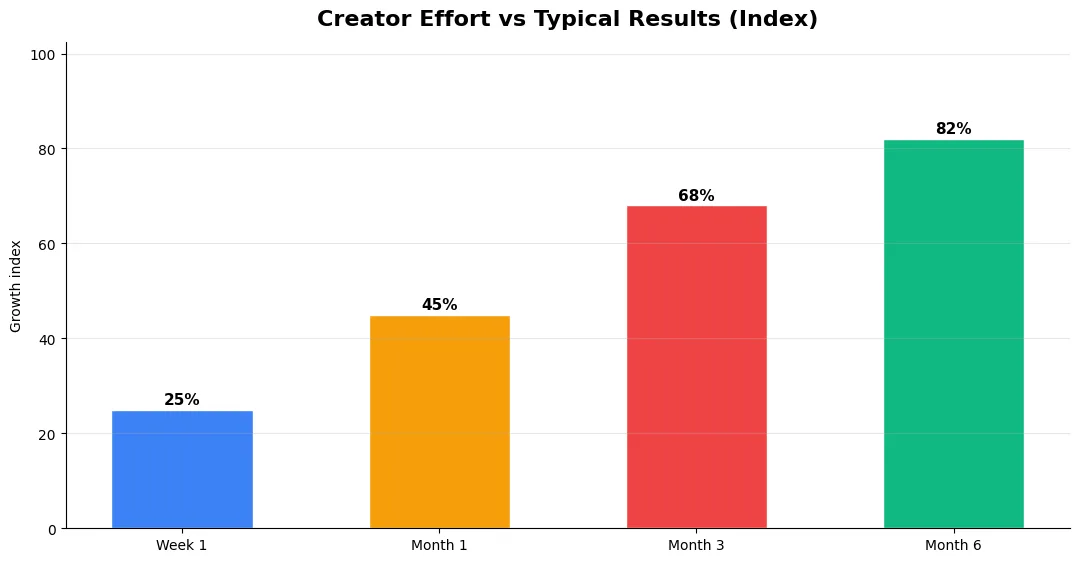
This guide covers how to use canva for in plain language for creators in India, the US, the UK, and global audiences. Whether you are starting out or refining a channel that already earns views, the frameworks below help you work smarter—not just post more often. Read through the charts and comparison table, then apply one change per week so improvements stick.
This guide covers how to use canva for in plain language for creators in India, the US, the UK, and global audiences. Whether you are starting out or refining a channel that already earns views, the frameworks below help you work smarter—not just post more often. Read through the charts and comparison table, then apply one change per week so improvements stick.
Step-by-Step YouTube Thumbnail Creation in Canva
Start by opening Canva and searching for “YouTube Thumbnail” in the template library. Canva automatically sets the canvas to 1280×720 pixels — the recommended resolution for YouTube thumbnails. Browse templates by category or start with a blank design if you have a specific look in mind.
For a high-performing thumbnail, follow this formula: one strong image + large readable text + contrasting colors. Upload your own photo or use Canva’s background remover to isolate your subject. Add a bold headline with no more than five words — viewers scan thumbnails in under a second, so clarity beats cleverness. Use a contrasting background color or gradient to make the text pop.
Once your thumbnail design is ready, pair it with an attention-grabbing title. Our guide to free AI tools for YouTube titles and tags shows how to generate click-worthy metadata that complements your visual design.
End Screen Templates and Brand Kit Setup
YouTube end screens appear during the last 5–20 seconds of a video and are essential for driving subscribers and watch time. Canva offers dedicated end screen templates sized at 1920×1080 pixels. Search “YouTube End Screen” in the template library to find layouts with placeholder areas that align with YouTube’s end screen element positions.
To keep your channel looking consistent, set up a Brand Kit in Canva. Even on the free plan, you can save one brand color palette and one logo. On Canva Pro, you can save multiple fonts, color palettes, and logos. A consistent brand identity across thumbnails and end screens helps viewers recognize your content instantly in their feed. For more on building a consistent creator workflow, see our script-to-upload toolkit guide.
Tips for Thumbnail Consistency and Performance
Consistency does not mean every thumbnail looks identical — it means viewers can spot your videos among dozens of search results. Use the same font family, a consistent color scheme, and a recognizable layout style across your channel. Some creators use a signature border or text placement that becomes their visual trademark.
Test different thumbnail styles by checking your click-through rate in YouTube Studio analytics. If you have access to A/B thumbnail testing, use it to compare designs scientifically. Combine visual optimization with strong YouTube SEO fundamentals for the best results.
Canva Free vs. Pro — Feature Comparison for Creators
| Feature | Canva Free | Canva Pro |
|---|---|---|
| YouTube Thumbnail Templates | Thousands available | All templates + premium |
| Background Remover | Not available | One-click removal |
| Brand Kit | 1 palette, 1 logo | Multiple palettes, fonts, logos |
| Resize Magic | Not available | Instant resize to any format |
| Stock Photos | Limited free library | 100M+ premium images |
| Custom Fonts Upload | Not available | Upload any font |
| Price | Free | $54.99/year (1 person) |
Conclusion
Canva makes professional YouTube thumbnails and end screens accessible to every creator, regardless of design skill or budget. Master the basics on the free plan, maintain brand consistency, and let your thumbnails do the selling. Pair great visuals with optimized titles from the best free AI tools for creators and watch your click-through rates climb.
👉 YouTube SEO Complete Guide — Rank Your Videos in 2026
👉 YouTube 2026 Creator Platform Changes — Complete Guide
Tools and Resources That Save Time
Invest in lightweight tools that reduce friction: a caption workflow, a thumbnail template system, and a title/description helper so metadata stays consistent. The YT Title Description Generator app helps you draft SEO-friendly titles and descriptions quickly when you batch-upload multiple videos.
Keep a swipe file of hooks, titles, and thumbnails that performed well in your niche—not to copy, but to analyze patterns. Pair that with YouTube Studio analytics and one external keyword or trend tool so creative decisions stay grounded in data.
Measuring Success — Metrics That Matter
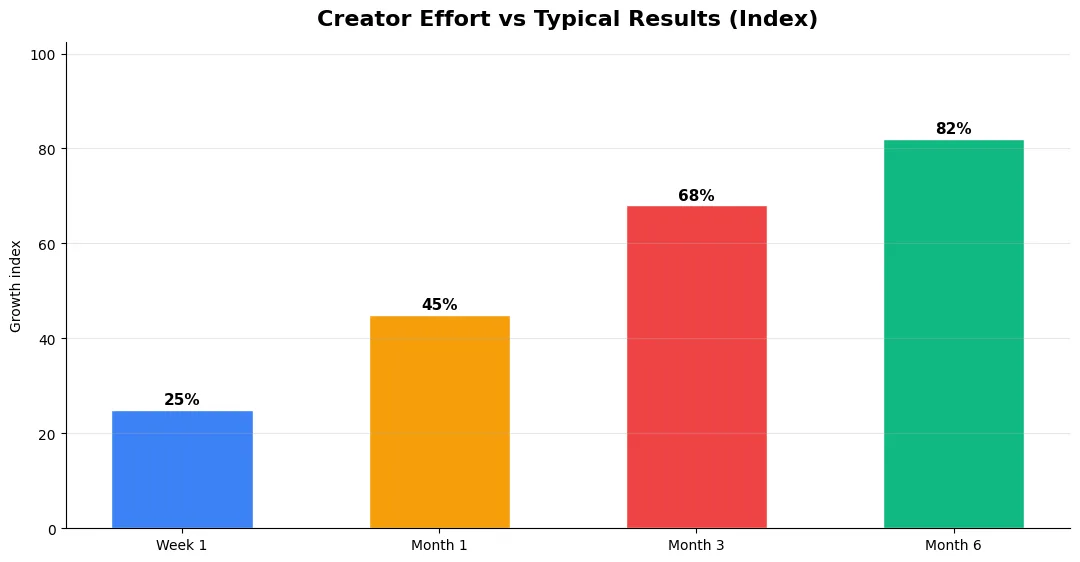
Track average view duration and audience retention before raw view count. Rising retention tells you the content matches the promise of your title and thumbnail; falling retention signals a hook or pacing problem. Monitor click-through rate separately—high CTR with low retention usually means the packaging oversold the video.
For growth channels, watch subscriber conversion per thousand views and returning viewer percentage. For monetized channels, revenue per mille and watch time from high-value geographies matter more than viral spikes from low-monetization regions. Set monthly targets for two metrics only; too many KPIs dilute focus.
Common Mistakes to Avoid in 2026
The fastest way to stall growth is copying trends without adapting them to your niche voice. Another frequent error is optimizing only for views while ignoring audience fit, which inflates vanity metrics but hurts monetization and brand deals later. Avoid posting on inconsistent schedules; algorithms and audiences both reward predictable cadence.
Do not neglect analytics review. Spend thirty minutes weekly on retention curves, traffic sources, and click-through rate on thumbnails. Small iterative fixes—tighter hooks, clearer titles, better pacing—often outperform chasing entirely new formats every week.
Advanced Tips for Competitive Niches
In saturated niches, specificity wins. Narrow your positioning until you can describe your ideal viewer in one sentence, then speak directly to that person in every title and hook. Collaborate with adjacent creators whose audiences overlap but are not identical—this expands reach without diluting brand identity.
Repurpose top performers into Shorts, community posts, and newsletter snippets to extract more value from proven ideas. Update evergreen videos when platforms change features; refreshed metadata and a pinned comment with the latest link can revive older assets.
| Level | Strategy | Typical outcome |
|---|---|---|
| Beginner approach | Copy trends blindly | Low retention, no brand |
| Structured approach | Test hooks + analyze data | Steady growth |
| Pro approach | Series + community loop | Higher LTV audience |
Advanced Tips for Competitive Niches
In saturated niches, specificity wins. Narrow your positioning until you can describe your ideal viewer in one sentence, then speak directly to that person in every title and hook. Collaborate with adjacent creators whose audiences overlap but are not identical—this expands reach without diluting brand identity.
Repurpose top performers into Shorts, community posts, and newsletter snippets to extract more value from proven ideas. Update evergreen videos when platforms change features; refreshed metadata and a pinned comment with the latest link can revive older assets.
Common Mistakes to Avoid in 2026
The fastest way to stall growth is copying trends without adapting them to your niche voice. Another frequent error is optimizing only for views while ignoring audience fit, which inflates vanity metrics but hurts monetization and brand deals later. Avoid posting on inconsistent schedules; algorithms and audiences both reward predictable cadence.
Do not neglect analytics review. Spend thirty minutes weekly on retention curves, traffic sources, and click-through rate on thumbnails. Small iterative fixes—tighter hooks, clearer titles, better pacing—often outperform chasing entirely new formats every week.
Measuring Success — Metrics That Matter
Track average view duration and audience retention before raw view count. Rising retention tells you the content matches the promise of your title and thumbnail; falling retention signals a hook or pacing problem. Monitor click-through rate separately—high CTR with low retention usually means the packaging oversold the video.
For growth channels, watch subscriber conversion per thousand views and returning viewer percentage. For monetized channels, revenue per mille and watch time from high-value geographies matter more than viral spikes from low-monetization regions. Set monthly targets for two metrics only; too many KPIs dilute focus.
Tools and Resources That Save Time
Invest in lightweight tools that reduce friction: a caption workflow, a thumbnail template system, and a title/description helper so metadata stays consistent. The YT Title Description Generator app helps you draft SEO-friendly titles and descriptions quickly when you batch-upload multiple videos.
Keep a swipe file of hooks, titles, and thumbnails that performed well in your niche—not to copy, but to analyze patterns. Pair that with YouTube Studio analytics and one external keyword or trend tool so creative decisions stay grounded in data.
| Level | Strategy | Typical outcome |
|---|---|---|
| Beginner approach | Copy trends blindly | Low retention, no brand |
| Structured approach | Test hooks + analyze data | Steady growth |
| Pro approach | Series + community loop | Higher LTV audience |
What size should a YouTube thumbnail be in Canva?
Is Canva Free good enough for YouTube thumbnails?
Can I make YouTube end screens in Canva?
Do I need Canva Pro for background removal on thumbnails?
Final Verdict — How To Use Canva For in 2026
Success with how to use canva for comes from clarity, consistency, and honest delivery on every title and thumbnail promise. Use the step-by-step workflow, avoid the common mistakes above, and measure retention before chasing viral spikes. Small weekly improvements compound into channel growth that lasts beyond a single trending moment.
- YouTube Monetization Guide for Creators in 2026
- How to Go Viral on YouTube Shorts in 2026
- Claude Opus 4.6 vs 4.7 vs 4.8 — AI Tools for Creators
Final Verdict — How To Use Canva For in 2026
Success with how to use canva for comes from clarity, consistency, and honest delivery on every title and thumbnail promise. Use the step-by-step workflow, avoid the common mistakes above, and measure retention before chasing viral spikes. Small weekly improvements compound into channel growth that lasts beyond a single trending moment.
Also Read: