Screen recording is the backbone of tutorial content on YouTube. Whether you are teaching software skills, reviewing apps, or walking through a process step by step, you need a reliable tool that captures clean footage without slowing down your computer. In this guide, we compare the best screen recording tools for YouTube tutorial creators in 2026 — from free open-source options to premium solutions — so you can pick the right fit for your workflow.
This guide covers best screen recording tools for in plain language for creators in India, the US, the UK, and global audiences. Whether you are starting out or refining a channel that already earns views, the frameworks below help you work smarter—not just post more often. Read through the charts and comparison table, then apply one change per week so improvements stick.
OBS Studio — The Free Powerhouse
OBS Studio remains the gold standard for free screen recording and live streaming. It runs on Windows, Mac, and Linux, records at up to 4K 60fps, and offers complete control over scenes, audio sources, and overlays. For tutorial creators, OBS is ideal because you can set up a dedicated recording scene with your screen capture, webcam overlay, and microphone on separate tracks.
The learning curve is the biggest drawback. OBS has no built-in video editor, so you will need a separate editing tool. But once you master the initial setup, it delivers professional results at zero cost. Pair OBS with a proper script-to-upload workflow and your tutorial production becomes highly efficient.
Loom, Camtasia, and ShareX — Paid and Free Alternatives
Loom is popular for quick screen recordings with instant sharing. The free plan allows recordings up to 5 minutes with basic editing, while the paid plan removes limits and adds drawing tools. It works great for short explanations but is limited for full-length YouTube tutorials.
Camtasia is a premium option that combines screen recording with a built-in video editor. It offers annotations, callouts, zoom effects, and cursor highlighting — features specifically designed for tutorial content. The downside is the price tag, which makes it better suited for creators who produce tutorials professionally.
ShareX is a free, open-source tool for Windows that handles screen capture, GIF recording, and scrolling screenshots. While less polished than Camtasia, it is incredibly lightweight and versatile. Many creators use ShareX for quick captures alongside OBS for full recordings.
Built-In OS Tools — Quick and Easy
Both Windows and macOS now include capable built-in screen recorders. Windows 11’s Snipping Tool supports screen recording, while the Xbox Game Bar (Win+G) records any app. On Mac, Screenshot.app (Cmd+Shift+5) offers screen recording with audio. These tools are perfect for creators who need occasional recordings without installing extra software. For deeper insights into tools that complement your recording workflow, explore our guide to the best free AI tools for YouTube creators.
Screen Recording Tools — Comparison Table
| Tool | Price | Built-In Editor | Max Resolution | Best For |
|---|---|---|---|---|
| OBS Studio | Free | No | 4K 60fps | Full tutorials, streaming |
| Loom | Free / $12.50/mo | Basic trim | 1080p (free) / 4K (paid) | Short explainers |
| Camtasia | $179.88/year | Full editor | 4K | Professional tutorials |
| ShareX | Free | No | 4K | Quick captures, GIFs |
| Windows Snipping Tool | Free (built-in) | No | Native resolution | Casual recording |
| macOS Screenshot | Free (built-in) | No | Native resolution | Casual recording |
Conclusion
The best screen recording tool depends on your budget and content style. OBS Studio offers the most power for free, Camtasia excels for polished tutorials, and built-in OS tools handle quick jobs. Pick one, master it, and combine it with strong YouTube SEO practices to make sure your tutorials reach the widest possible audience.
👉 Best Free AI Tools for YouTube Titles, Descriptions & Tags 2026
👉 YouTube 2026 Creator Platform Changes — Complete Guide
Step-by-Step Workflow for 2026
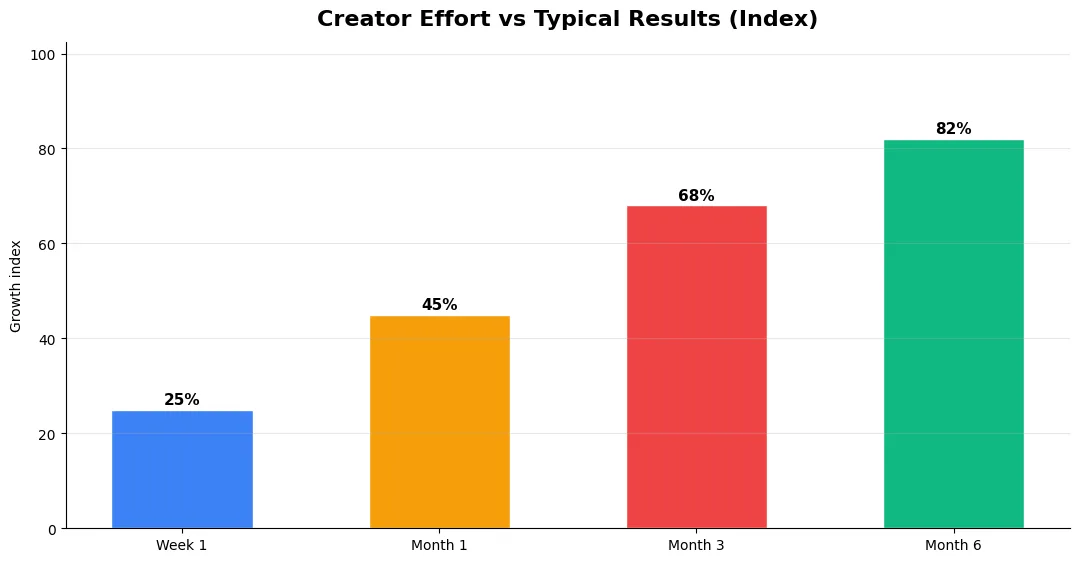
Start by defining one clear outcome for every piece of content you publish. Map the viewer journey from the first frame to the subscribe or click action, and remove any step that does not move that journey forward. Batch your research, scripting, and B-roll capture so you are not context-switching between creative and administrative tasks every day.
Use a simple checklist before upload: title clarity, thumbnail readability on mobile, hook strength in the first three seconds, captions accuracy, and end-screen placement. Creators who treat upload as a quality gate—not a rush job—see compounding gains in retention and discovery over 2026.
Measuring Success — Metrics That Matter
Track average view duration and audience retention before raw view count. Rising retention tells you the content matches the promise of your title and thumbnail; falling retention signals a hook or pacing problem. Monitor click-through rate separately—high CTR with low retention usually means the packaging oversold the video.
For growth channels, watch subscriber conversion per thousand views and returning viewer percentage. For monetized channels, revenue per mille and watch time from high-value geographies matter more than viral spikes from low-monetization regions. Set monthly targets for two metrics only; too many KPIs dilute focus.
Tools and Resources That Save Time
Invest in lightweight tools that reduce friction: a caption workflow, a thumbnail template system, and a title/description helper so metadata stays consistent. The YT Title Description Generator app helps you draft SEO-friendly titles and descriptions quickly when you batch-upload multiple videos.
Keep a swipe file of hooks, titles, and thumbnails that performed well in your niche—not to copy, but to analyze patterns. Pair that with YouTube Studio analytics and one external keyword or trend tool so creative decisions stay grounded in data.
Advanced Tips for Competitive Niches
In saturated niches, specificity wins. Narrow your positioning until you can describe your ideal viewer in one sentence, then speak directly to that person in every title and hook. Collaborate with adjacent creators whose audiences overlap but are not identical—this expands reach without diluting brand identity.
Repurpose top performers into Shorts, community posts, and newsletter snippets to extract more value from proven ideas. Update evergreen videos when platforms change features; refreshed metadata and a pinned comment with the latest link can revive older assets.
| Level | Strategy | Typical outcome |
|---|---|---|
| Beginner approach | Copy trends blindly | Low retention, no brand |
| Structured approach | Test hooks + analyze data | Steady growth |
| Pro approach | Series + community loop | Higher LTV audience |
Is OBS Studio good enough for YouTube tutorials?
What is the easiest screen recorder for beginners?
Can I record my screen and webcam at the same time for free?
Final Verdict — Best Screen Recording Tools For in 2026
Success with best screen recording tools for comes from clarity, consistency, and honest delivery on every title and thumbnail promise. Use the step-by-step workflow, avoid the common mistakes above, and measure retention before chasing viral spikes. Small weekly improvements compound into channel growth that lasts beyond a single trending moment.
Also Read: