How to set up Siri on iPhone 16: Set up Siri on iPhone 16 quickly by going to Settings > Apple Intelligence & Siri > Talk to Siri, then enable “Siri” and “Hey Siri” and complete the voice training to activate hands-free voice commands effortlessly in 2025.
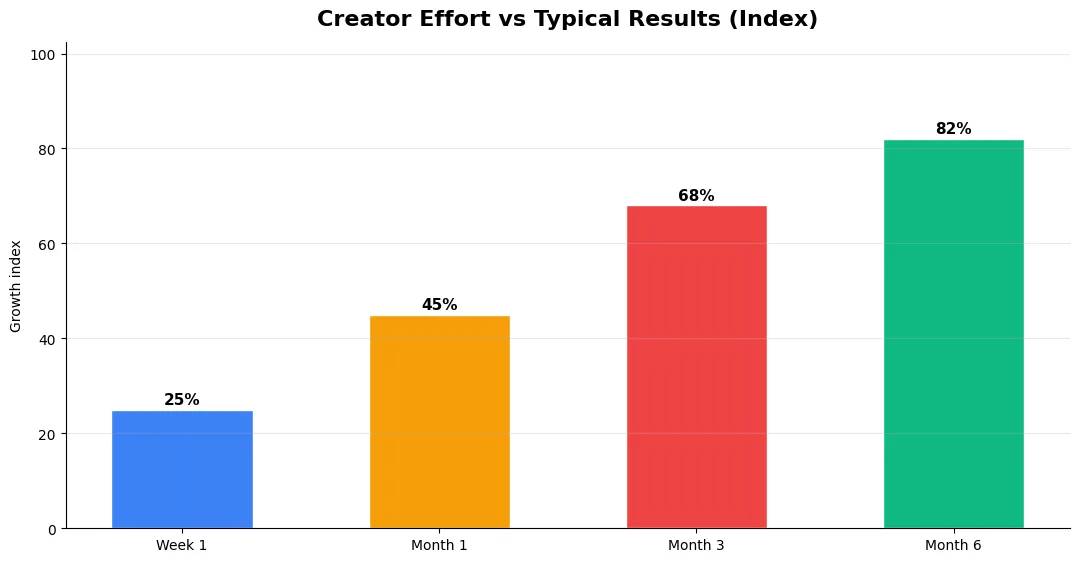
This guide covers how to set up siri in plain language for creators in India, the US, the UK, and global audiences. Whether you are starting out or refining a channel that already earns views, the frameworks below help you work smarter—not just post more often. Read through the charts and comparison table, then apply one change per week so improvements stick.
Contents
Why Set Up Siri on iPhone 16?
Siri on iPhone 16 is more advanced than ever, thanks to improvements in artificial intelligence and machine learning. With Siri, you can manage daily tasks, control smart devices, get answers to complex questions, and interact with your phone using just your voice. Setting up Siri ensures you get the most out of these powerful features.
Step-by-Step Guide: How to Set Up Siri on iPhone 16
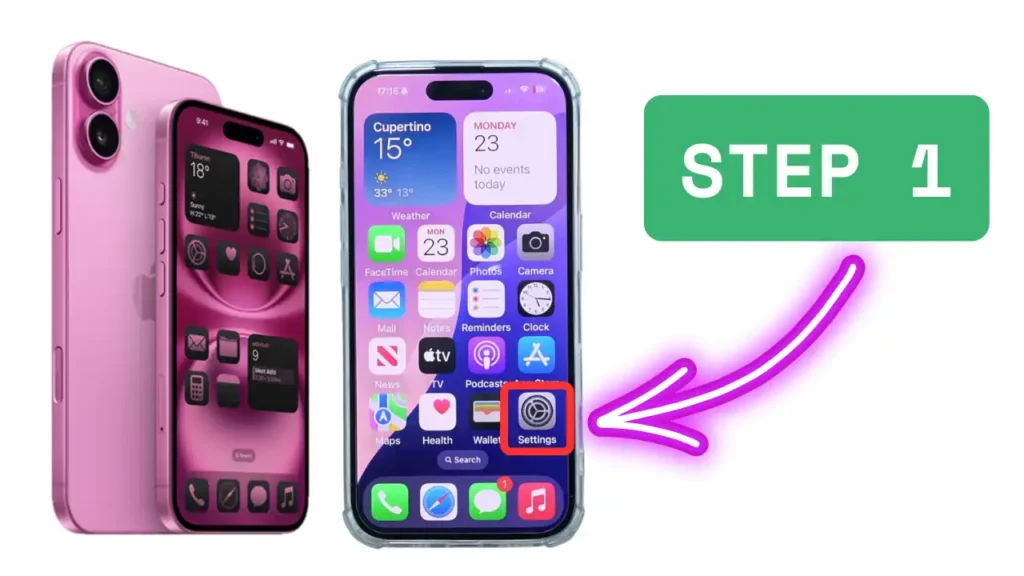
1) Open Settings
Unlock your iPhone 16 and open the Settings app.
Set up Siri on iPhone 16 – Step 1
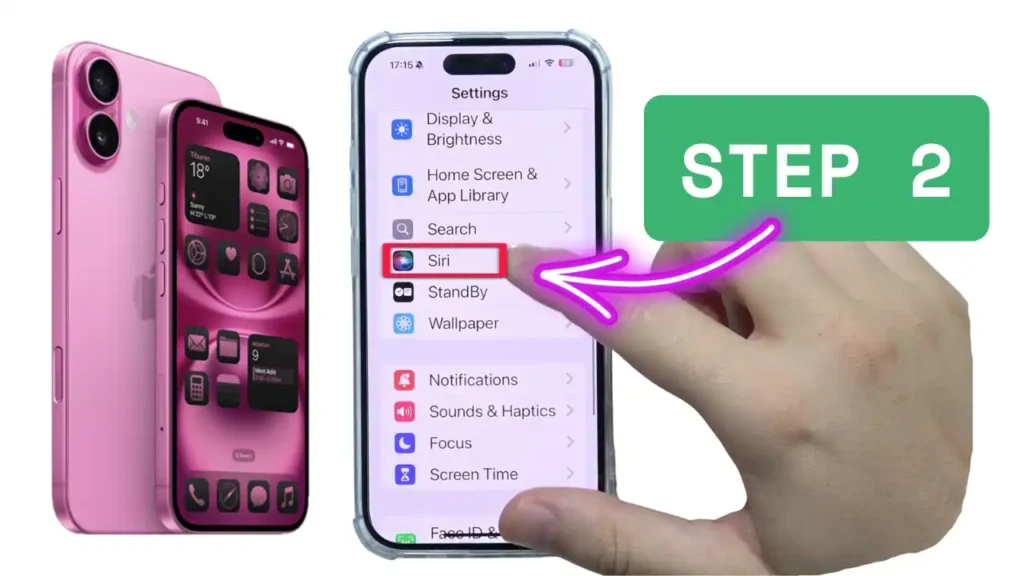
2) Find Siri Settings
Scroll down and tap on Siri or Apple Intelligence & Siri (the exact name may vary depending on your iOS version).
Set up Siri on iPhone 16 – Step 2
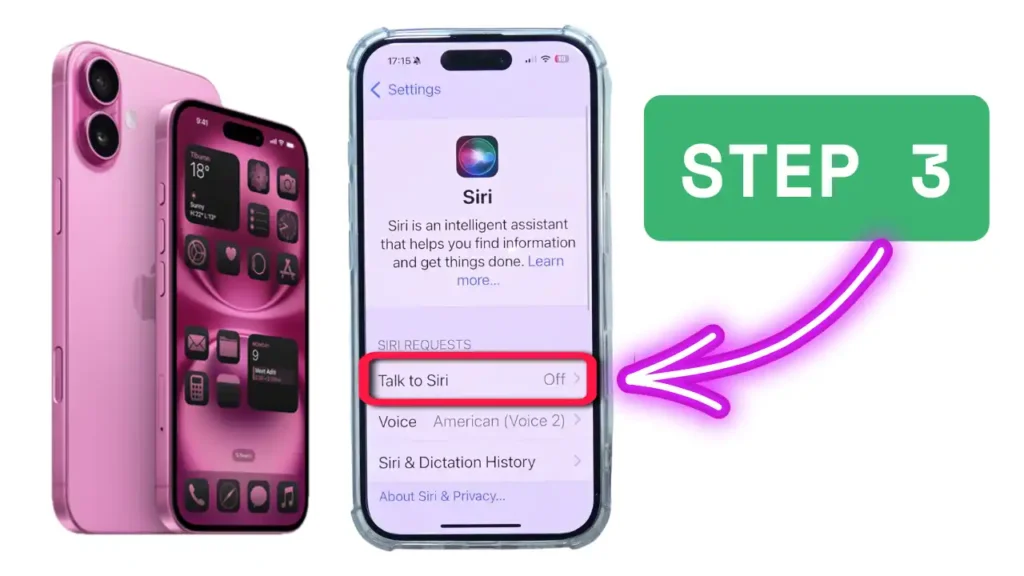
3) Enable Voice Activation
Tap on Talk to Siri.
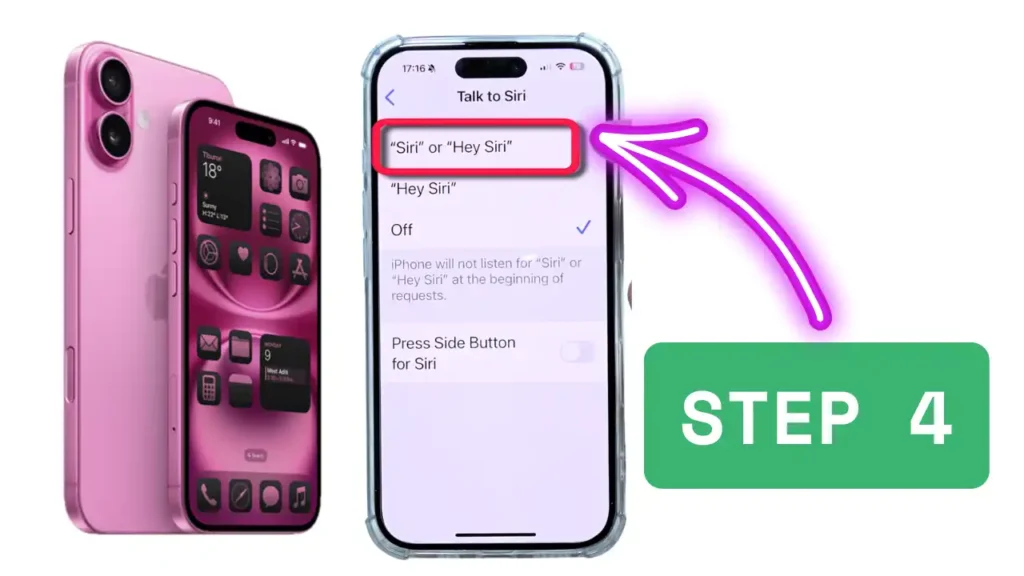
Choose your preferred activation phrase: “Hey Siri” or just “Siri” (the option to use just “Siri” may be available depending on your region and language).
Set up Siri on iPhone 16 – Step 3
4) Set Up Voice Recognition
Tap on Set Up “Hey Siri”.
Set up Siri on iPhone 16 – Step 4
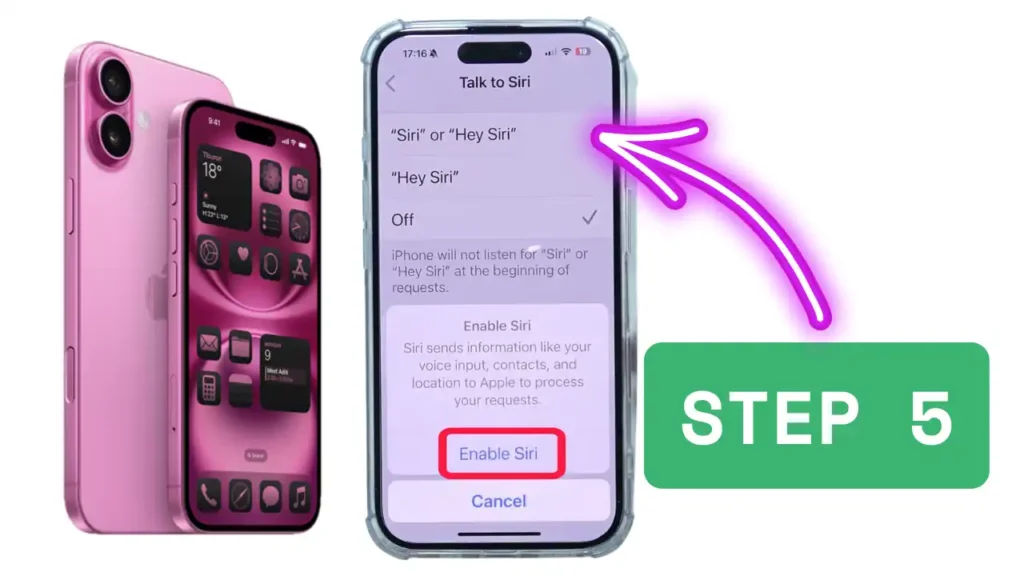
Follow the on-screen prompts to train Siri to recognize your voice. You’ll be asked to say a few phrases like:
“Hey Siri, how’s the weather?”
“Hey Siri, send a message.”
“Hey Siri, set a timer for 3 minutes.”
“Hey Siri, get directions home.”
“Hey Siri, play some music.”
Set up Siri on iPhone 16 – Step 5
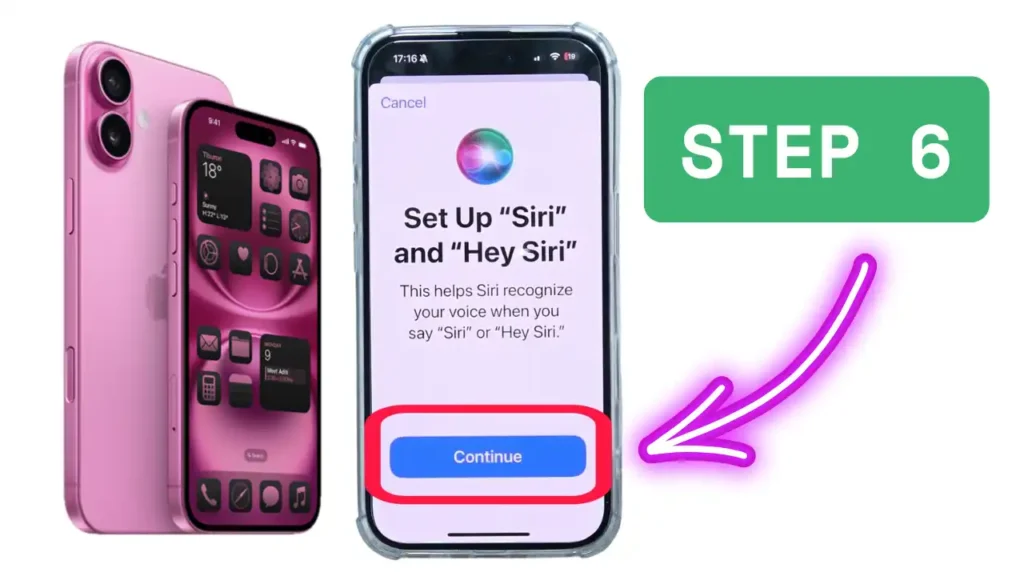
5) Complete Setup
Once you’ve finished the prompts, tap Done.
Siri is now ready to respond to your voice commands.
Set up Siri on iPhone 16 – Step 6
Watch the full video to understand how to activate Siri on iPhone 16
Additional Siri Settings
Listen for “Hey Siri”: Enable or disable voice activation.
Press Side Button for Siri: If you prefer, you can activate Siri by pressing and holding the side button.
Allow Siri When Locked: Decide if Siri can be used when your phone is locked.
Language and Voice: Change Siri’s language or voice to suit your preference.
App Integration: Allow Siri to access certain apps for more functionality.
Once set up, you can activate Siri in several ways:
Voice Activation: Say “Hey Siri” or “Siri” followed by your command.
Side Button: Press and hold the side button, then speak your request.
Typing to Siri: If Apple Intelligence is enabled, double-tap the bottom of the screen to type your request; otherwise, enable “Type to Siri” in settings.
Siri can help with tasks such as:
Sending messages and making calls
Setting reminders and alarms
Controlling smart home devices
Playing music and media
Providing directions and weather updates
Answering complex questions using AI
Siri on iPhone 16: Key Features
Feature
Description
Availability
Voice Activation
Activate Siri with “Hey Siri” or “Siri”
All iPhone 16 models
Advanced Voice Recognition
Improved accuracy, even in noisy environments
iPhone 16 only
On-Device Processing
Enhanced privacy—voice commands processed on the device
iPhone 16 with iOS 18+
App Integration
Control third-party apps and smart home devices
Most major apps supported
Image Recognition
Siri can analyze and recognize images
iPhone 16 only
Personalized Recommendations
Machine learning adapts to your usage patterns
iPhone 16 only
Security and Privacy
Siri on iPhone 16 processes many voice commands on the device itself, enhancing your privacy. You can control what data Siri can access and adjust privacy settings at any time.
Troubleshooting Siri Setup
Siri Not Responding? Ensure your microphone is working and that “Listen for ‘Hey Siri’” is enabled in settings.
Voice Not Recognized? Retrain Siri by repeating the setup process.
Frequently Asked Questions
Tools and Resources That Save Time
Invest in lightweight tools that reduce friction: a caption workflow, a thumbnail template system, and a title/description helper so metadata stays consistent. The YT Title Description Generator app helps you draft SEO-friendly titles and descriptions quickly when you batch-upload multiple videos.
Keep a swipe file of hooks, titles, and thumbnails that performed well in your niche—not to copy, but to analyze patterns. Pair that with YouTube Studio analytics and one external keyword or trend tool so creative decisions stay grounded in data.
Advanced Tips for Competitive Niches
In saturated niches, specificity wins. Narrow your positioning until you can describe your ideal viewer in one sentence, then speak directly to that person in every title and hook. Collaborate with adjacent creators whose audiences overlap but are not identical—this expands reach without diluting brand identity.
Repurpose top performers into Shorts, community posts, and newsletter snippets to extract more value from proven ideas. Update evergreen videos when platforms change features; refreshed metadata and a pinned comment with the latest link can revive older assets.
Common Mistakes to Avoid in 2026
The fastest way to stall growth is copying trends without adapting them to your niche voice. Another frequent error is optimizing only for views while ignoring audience fit, which inflates vanity metrics but hurts monetization and brand deals later. Avoid posting on inconsistent schedules; algorithms and audiences both reward predictable cadence.
Do not neglect analytics review. Spend thirty minutes weekly on retention curves, traffic sources, and click-through rate on thumbnails. Small iterative fixes—tighter hooks, clearer titles, better pacing—often outperform chasing entirely new formats every week.
Step-by-Step Workflow for 2026
Start by defining one clear outcome for every piece of content you publish. Map the viewer journey from the first frame to the subscribe or click action, and remove any step that does not move that journey forward. Batch your research, scripting, and B-roll capture so you are not context-switching between creative and administrative tasks every day.
Use a simple checklist before upload: title clarity, thumbnail readability on mobile, hook strength in the first three seconds, captions accuracy, and end-screen placement. Creators who treat upload as a quality gate—not a rush job—see compounding gains in retention and discovery over 2026.
Level
Strategy
Typical outcome
Beginner approach
Copy trends blindly
Low retention, no brand
Structured approach
Test hooks + analyze data
Steady growth
Pro approach
Series + community loop
Higher LTV audience
Can I use Siri on iPhone 16 without saying Hey Siri?
Yes, on supported models and regions, you can activate Siri by just saying ‘Siri’ instead of ‘Hey Siri.’ This option appears during setup in Settings > Siri or Apple Intelligence & Siri.
How do I retrain Siri to recognize my voice on iPhone 16?
Go to Settings > Siri or Apple Intelligence & Siri, tap on ‘Set Up Hey Siri,’ and follow the prompts to retrain Siri with your voice.
Does Siri on iPhone 16 work offline?
Some Siri functions, such as basic commands and device control, can work offline thanks to on-device processing. However, tasks requiring internet access, like web searches, still need a connection.
Is Siri on iPhone 16 more private?
Yes, Siri on iPhone 16 processes many commands on-device, enhancing privacy and reducing the amount of data sent to Apple servers.
Can Siri control third-party apps on iPhone 16?
Yes, Siri integrates with many third-party apps, allowing you to send messages, play music, and control smart devices using voice commands.
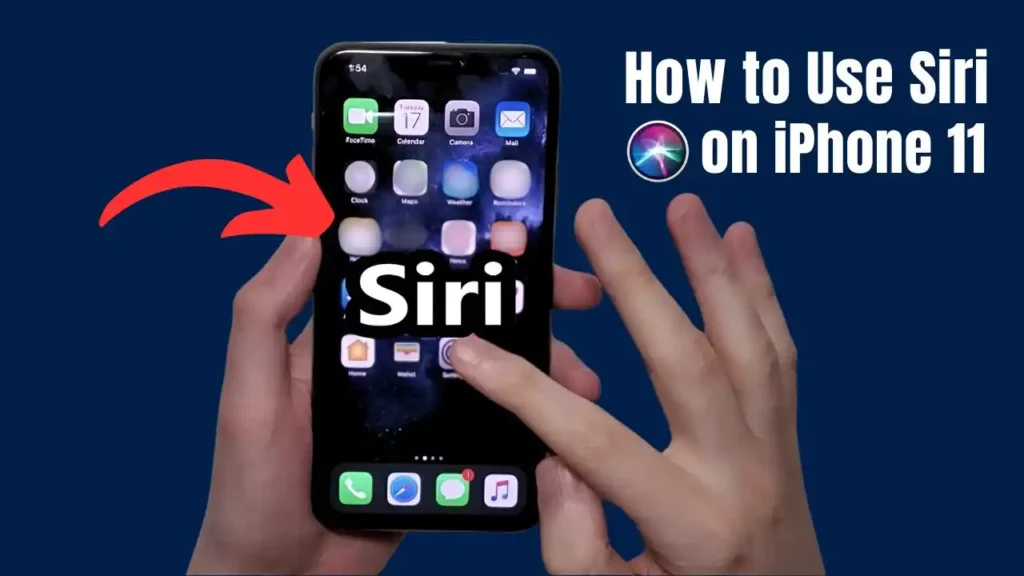
Want to know how to Use Siri on iPhone 11? Read the below blog post.
How to Use Siri on iPhone 11?
Final Verdict — How To Set Up Siri in 2026
Success with how to set up siri comes from clarity, consistency, and honest delivery on every title and thumbnail promise. Use the step-by-step workflow, avoid the common mistakes above, and measure retention before chasing viral spikes. Small weekly improvements compound into channel growth that lasts beyond a single trending moment.