Mobile To PC File Transfer Without Cable has become essential for many users. With the rise of wireless technology, transferring files between devices without a physical connection is not only possible but also straightforward. This guide will cover various methods to achieve this, ensuring you can share your files easily and efficiently.
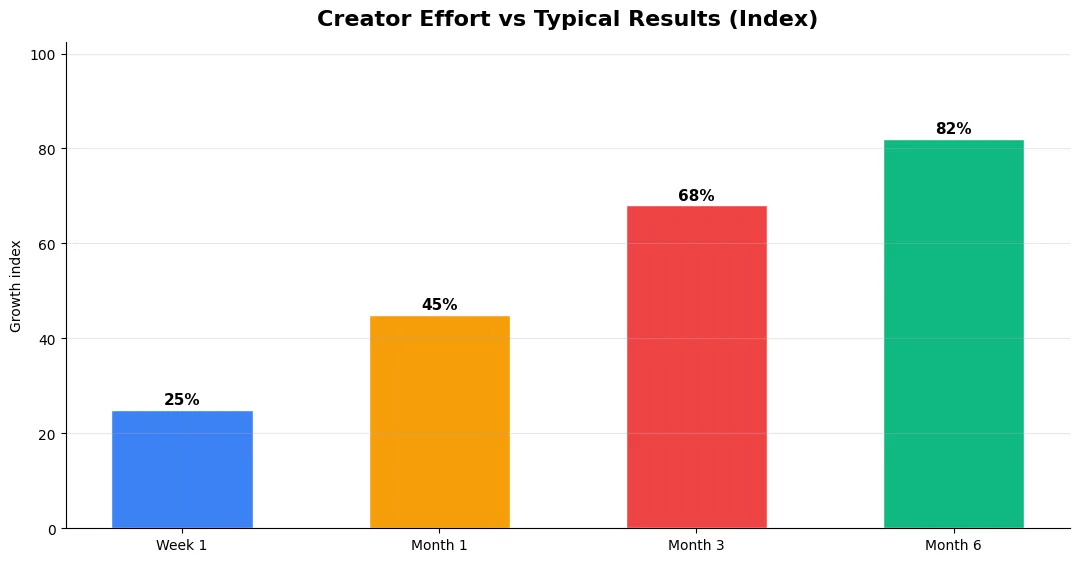
This guide covers mobile to pc file transfer in plain language for creators in India, the US, the UK, and global audiences. Whether you are starting out or refining a channel that already earns views, the frameworks below help you work smarter—not just post more often. Read through the charts and comparison table, then apply one change per week so improvements stick.
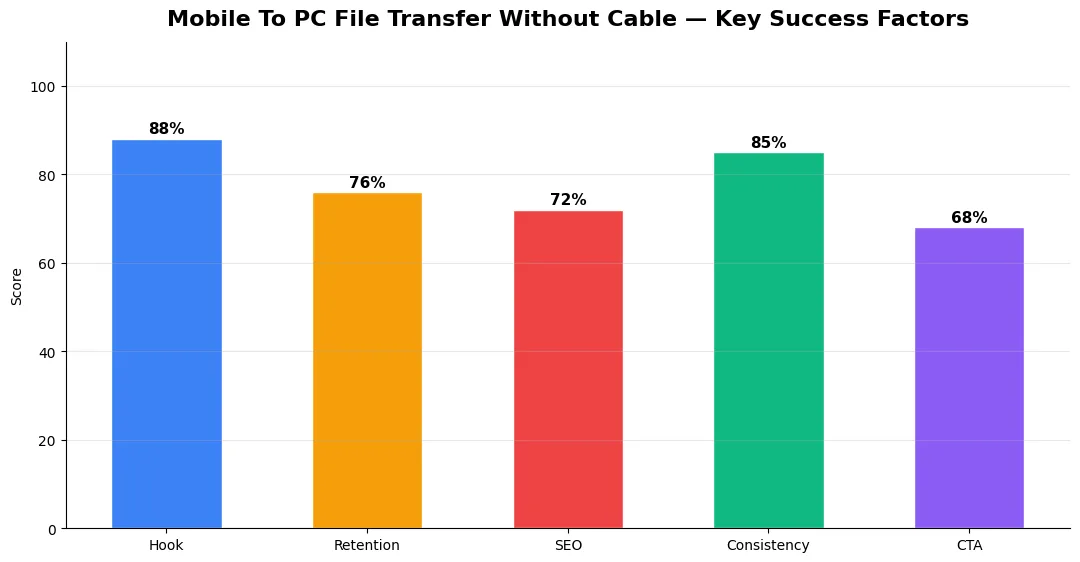
Table of Contents
Mobile To PC File Transfer Without Cable
Transferring files from your mobile device to your PC without using a cable can save time and effort. It eliminates the hassle of finding a USB cable or dealing with connection issues. There are several methods available, each with its advantages.
Methods for Mobile To PC File Transfer Without Cable
Here are some effective methods for transferring files wirelessly:
| Method | Description | Pros | Cons |
|---|---|---|---|
| Wi-Fi Transfer | Use apps like AirDroid or FTP Server. | Fast and reliable | Requires app installation |
| Cloud Services | Utilize services like Google Drive or Dropbox. | Access from any device | Needs internet connection |
| Bluetooth | Pair devices and send files directly. | Simple and built-in | Slower transfer speeds |
| Send files as attachments through email. | Easy for small files | Size limit on attachments | |
| Phone Link App | Microsoft’s app for seamless integration. | Direct integration with Windows | Limited to Windows users |
Wi-Fi Transfer
Using Wi-Fi is one of the fastest ways to transfer files. Apps like AirDroid allow you to connect your phone and PC over the same network.
- Install AirDroid on both your mobile device and PC.
- Log in to your account on both devices.
- On your mobile app, select the files you want to transfer.
- Choose the option to send them to your PC.
This method provides quick transfers without the need for a cable or complex setups.
Cloud Services
Cloud storage services such as Google Drive, Dropbox, and OneDrive offer another efficient way to transfer files.
- Upload the desired files from your mobile device to the cloud service.
- Access the same account on your PC.
- Download the files directly onto your computer.
This method is particularly useful for accessing files from multiple devices.
Bluetooth
Bluetooth is a built-in feature in most devices, making it a convenient option for file transfers.
- Enable Bluetooth on both devices.
- Pair your mobile device with your PC.
- Select the file you want to send, choose Bluetooth as the sharing method, and send it.
While this method is straightforward, it may take longer than Wi-Fi or cloud services, especially for larger files.
Using email can be an effective way to share smaller files quickly.
- Attach the file(s) you want to send in an email.
- Send it to yourself.
- Open the email on your PC and download the attachments.
However, be mindful of size limits, typically around 25MB per email.
Phone Link App
For Windows users, Microsoft’s Phone Link App (formerly Your Phone) allows seamless file transfers between Android phones and Windows PCs.
- Install the Phone Link app on your Windows PC.
- Download the companion app on your Android device.
- Log in with your Microsoft account on both devices.
- Follow prompts to link them via QR code or Bluetooth.
This provides a smooth experience for transferring files without cables.
Mobile To PC File Transfer Without Cable has transformed how we share data between devices. With methods like Wi-Fi transfers, cloud services, Bluetooth, email, and dedicated apps like Phone Link, users can choose what works best for their needs.
Each method has its strengths and weaknesses, so consider factors like file size, speed, and ease of use when selecting a transfer method. With these options at your disposal, sharing files wirelessly is easier than ever before!
Common Mistakes to Avoid in 2026
The fastest way to stall growth is copying trends without adapting them to your niche voice. Another frequent error is optimizing only for views while ignoring audience fit, which inflates vanity metrics but hurts monetization and brand deals later. Avoid posting on inconsistent schedules; algorithms and audiences both reward predictable cadence.
Do not neglect analytics review. Spend thirty minutes weekly on retention curves, traffic sources, and click-through rate on thumbnails. Small iterative fixes—tighter hooks, clearer titles, better pacing—often outperform chasing entirely new formats every week.
Step-by-Step Workflow for 2026
Start by defining one clear outcome for every piece of content you publish. Map the viewer journey from the first frame to the subscribe or click action, and remove any step that does not move that journey forward. Batch your research, scripting, and B-roll capture so you are not context-switching between creative and administrative tasks every day.
Use a simple checklist before upload: title clarity, thumbnail readability on mobile, hook strength in the first three seconds, captions accuracy, and end-screen placement. Creators who treat upload as a quality gate—not a rush job—see compounding gains in retention and discovery over 2026.
Measuring Success — Metrics That Matter
Track average view duration and audience retention before raw view count. Rising retention tells you the content matches the promise of your title and thumbnail; falling retention signals a hook or pacing problem. Monitor click-through rate separately—high CTR with low retention usually means the packaging oversold the video.
For growth channels, watch subscriber conversion per thousand views and returning viewer percentage. For monetized channels, revenue per mille and watch time from high-value geographies matter more than viral spikes from low-monetization regions. Set monthly targets for two metrics only; too many KPIs dilute focus.
Tools and Resources That Save Time
Invest in lightweight tools that reduce friction: a caption workflow, a thumbnail template system, and a title/description helper so metadata stays consistent. The YT Title Description Generator app helps you draft SEO-friendly titles and descriptions quickly when you batch-upload multiple videos.
Keep a swipe file of hooks, titles, and thumbnails that performed well in your niche—not to copy, but to analyze patterns. Pair that with YouTube Studio analytics and one external keyword or trend tool so creative decisions stay grounded in data.
| Level | Strategy | Typical outcome |
|---|---|---|
| Beginner approach | Copy trends blindly | Low retention, no brand |
| Structured approach | Test hooks + analyze data | Steady growth |
| Pro approach | Series + community loop | Higher LTV audience |
Final Verdict — Mobile To Pc File Transfer in 2026
Success with mobile to pc file transfer comes from clarity, consistency, and honest delivery on every title and thumbnail promise. Use the step-by-step workflow, avoid the common mistakes above, and measure retention before chasing viral spikes. Small weekly improvements compound into channel growth that lasts beyond a single trending moment.
Also Read:
- YouTube Monetization Guide for Creators in 2026
- How to Go Viral on YouTube Shorts in 2026
- Claude Opus 4.6 vs 4.7 vs 4.8 — AI Tools for Creators
What is Mobile To PC File Transfer Without Cable?
Mobile To Pc File Transfer Without Cable covers the key topic explained in this guide — definitions, practical steps, and tips you can apply immediately.
Why does Mobile To PC File Transfer Without Cable matter in 2026?
Platforms and audiences change fast; understanding Mobile To PC File Transfer Without Cable helps you stay competitive, improve results, and avoid common mistakes.
How do I get started with Mobile To PC File Transfer Without Cable?
Start with one clear goal, follow the step-by-step workflow in this article, track one or two metrics weekly, and iterate based on data.
What are common mistakes with Mobile To PC File Transfer Without Cable?
Copying trends without adapting to your niche, skipping analytics review, and inconsistent publishing are the most frequent errors.
Where can I learn more about Mobile To PC File Transfer Without Cable?
Use the Also Read links at the end of this article for related guides on Tech Bichar, and bookmark this page for future reference.